Oracle APEX with Bootstrap Popover
We'll show you how to easily add a Bootstrap Popover to your classic or interactive reports. Save your users some clicks and serve them up their data faster

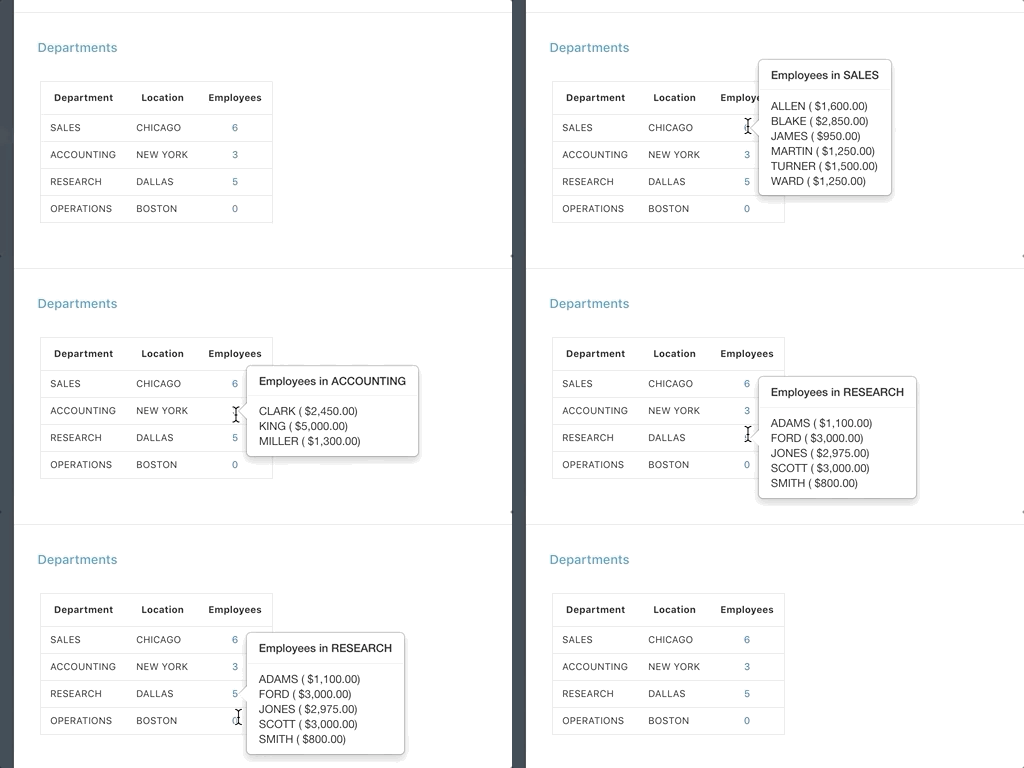
We'll show you how to easily add a Bootstrap Popover to your classic or interactive reports. Save your users some clicks and serve them up their data faster
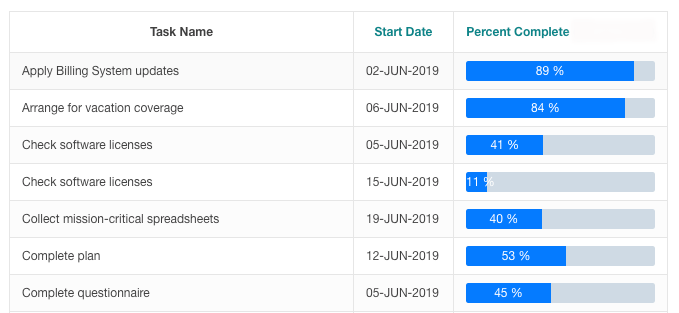
Display a cute and effective Bootstrap Progress Bar in your APEX reports with a few simple CSS tweaks. Help your users scan and process data faster!
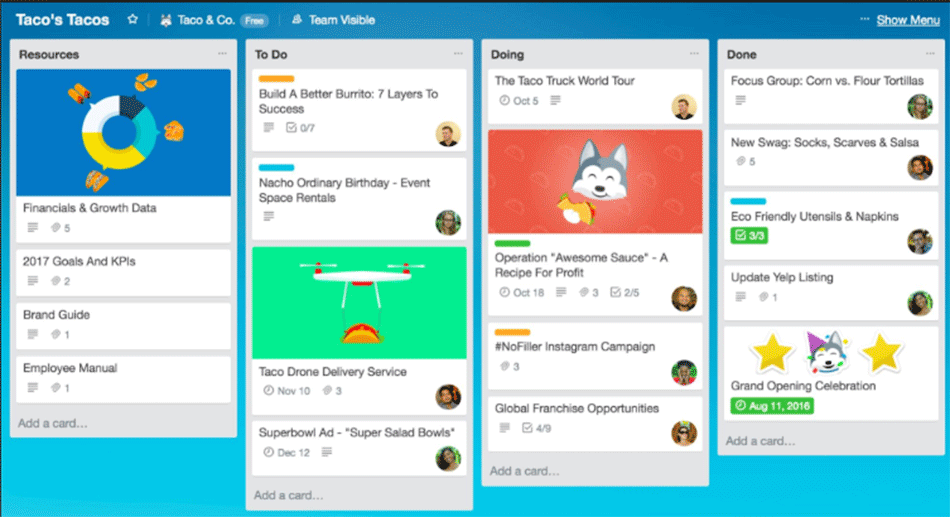
How to easily integrate a simple modal popup form in your Oracle APEX application that logs feedback and session state to cards in Trello.

Find out how to implement a full audit trail for your applications, so that you can get a full history of all changes that may have occurred on any record.

How to modify the APEX Card Report Template in order to render repeating groups of cards. In this example, each employee is rendered as a card, within groups of Departments

The Oracle APEX Community is vibrant and a great place to turn when looking for help or advice. Here are a few places you might consider turning to when stuck or in a rut.

A simple to use Star Rating plugin for Oracle APEX based on jQuery RateYo plugin. Chock full of settings you'll be sure to enjoy!

This post will walk you through the steps of creating a jQuery widget that pulls data from your Oracle APEX database, and displays it anywhere.

Meet TextExpander. Or maybe you’ve already met, but you haven’t moved out of the friend zone yet. Please read on, and I guarantee you will be getting all the feels very soon.
All about Montreal Oracle Developer Day, where we learned about some of the cool things people are doing with Oracle APEX.